.png)
Roku Channel Store: Artwork and Listing Guide
This guide covers everything you need to publish your Roku app in the Roku Channel Store:
the artwork for your app and your store page, the text Roku asks for, how to classify your app, and the rights and certification details Roku checks.
Bamboo usually prepares and submits your store listing for you. Use this guide to get everything ready in advance, or to manage your listing yourself in the Roku Developer Dashboard.
Before you start: you need your own Roku developer account, enrolled in Roku Partner Payouts, with a Roku device linked and Bamboo invited as an Administrator. Learn more: Activating the Roku Platform
Where to find it: sign in to the Roku Developer Dashboard and open your app. Your listing is split into three pages:
- Store assets: app name, descriptions, store poster, and screenshots.
- App profile: support contacts, privacy policy, and terms of use.
- Listing setup: category, age rating, and countries.
In this article:
- Artwork for your app: home screen icon, splash screen, and logo
- Store artwork: store poster and screenshots
- Listing text: name and descriptions
- Classify your app: app type, category, and age rating
- Third-party content and rights: the agreements to have ready
- Certification requirements: test account, payments, and publishing
- Checklist: everything in one list
Artwork for your app
These images are built into your app. Send them to Bamboo with your Kickoff document. Learn more: Bamboo apps Kickoff document
| Image | Size (pixels) | Format | Notes |
|---|---|---|---|
| Home screen icon | 540 × 405 and 290 × 218 | PNG | Shown on the Roku home screen. Both sizes are required. |
| Splash screen | 1920 × 1080 and 1280 × 720 | PNG or JPG | Shown while the app loads. Roku needs both sizes. |
| Logo | 512 × 385 | PNG | Shown in the top left of your app. |
| Placeholder | 1920 × 1080 | PNG | Shown when a category image is missing. |
Roku artwork can't be transparent, and must clearly show your app's name or logo. Keep important content away from the edges of the screen.
Store artwork
| Image | Size (pixels) | Required? |
|---|---|---|
| Store poster | 540 × 405, JPG or PNG | Yes, one per language |
| Screenshots | 1920 × 1080, JPG or PNG | Optional, up to 6 |
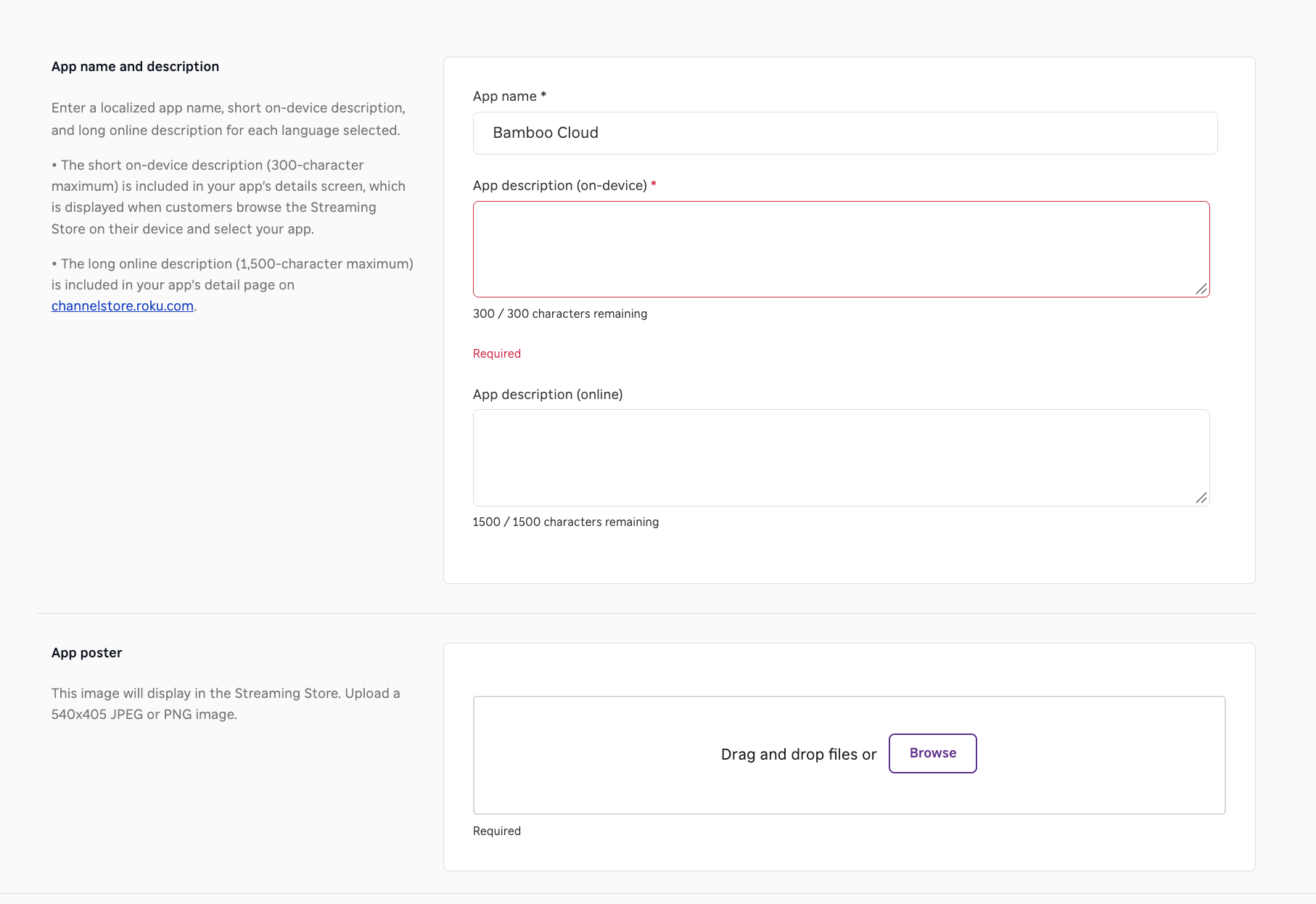
Make your screenshots work for you: Bamboo can take screenshots from your app for you. We recommend turning them into marketing images: your real app screens with a short message for viewers. For example, a screenshot of your channels with the text "24/7 channels, watch anytime".
Listing text
Add these in Store assets, in each language you support. Your support contacts, privacy policy, and terms of use go in App profile.
| Field | Limit | What to write |
|---|---|---|
| App name | 30 characters | Your brand or service name. It can't include "Roku". |
| Short description | 300 characters | Shown on Roku devices. What viewers can watch in your app. |
| Long description | 1500 characters | Shown on the Roku Channel Store website. |
| Support contacts | Required | A support website, email, and phone number (with country code). |
| Privacy policy and terms of use | Required | Links to your privacy policy and terms of use pages. |
Writing tips
- Keep it family-friendly: all store text and artwork must suit all ages.
- Use your real name: the app name must make it clear who's behind the service, and you must own the name.
- No keywords field: viewers find your app by its name in Roku search.
Classify your app
- App type: choose Video. Music video apps are Video too.
- Category: choose the category closest to your content, such as movies and TV, faith, education, or sports.
- Made for kids: choose Yes only if your app is for children. Kids apps go in the Kids category and can't have an Adult rating.
- Age rating: the rating shown on your app's details page.
- Countries: choose only the countries where you have the rights to show your content.
Third-party content and rights
When you publish, you confirm that you have the right to distribute your content in each country you chose. If your app shows content you didn't create, get written permission first. This includes:
- Movies, shows, or sports licensed from a distributor.
- Videos from YouTube or Vimeo channels that aren't yours.
- Music, sermons, or worship content from other artists or ministries.
- Other brands' names and logos.
Keep a signed license agreement or a permission letter from each rights holder, as a PDF. If Bamboo submits for you, send the documents to us with your Kickoff document.
Certification requirements
- Test account: a working username and password for Roku's reviewers, with access to all content, including paid content.
- Payments: subscriptions and paid content sold in your app must use Roku Pay. Sign-up and purchases happen on the Roku device.
- Ads: ads in your app must follow Roku's ad rules, including how often ad breaks can play.
- Real content: publish your videos and set up your categories before you submit.
- Publishing: after approval, you can schedule your app to go live from the second business day. Publishing can't be scheduled on Fridays or weekends.
Learn more: Roku: Certification criteria · Roku: Publishing guide
Checklist
- Roku developer account enrolled in Partner Payouts, with a linked device and Bamboo invited as an Administrator
- App artwork: home screen icons, splash screens, logo, and placeholder
- Store poster and screenshots
- App name, short description, and long description
- Support contacts, privacy policy, and terms of use
- App type, category, age rating, and countries chosen
- Rights documents for any third-party content
- Test account for certification
Need help? Contact us