.png)
Paypal integration
Connect your PayPal account to sell subscriptions and pay-per-view on your website and apps. You add your PayPal credentials yourself in Bamboo, and payments go straight to your PayPal account. Bamboo doesn't take any fees.
In this article:
- Before you start: set up your domain
- Choose PayPal as your payment gateway: and set your currency
- Get your PayPal credentials: Client ID and Client Secret
- Set up the PayPal webhook: so Bamboo knows when a payment goes through
- Events to select: the 6 events Bamboo uses
- Sandbox mode: try purchases before going live
Before you start
Your PayPal webhook needs your site's own address. Before you set up PayPal, add a domain to your site in Domain & Access: either a Bamboo domain or your own custom domain. Learn more: Domains
Choose PayPal as your payment gateway
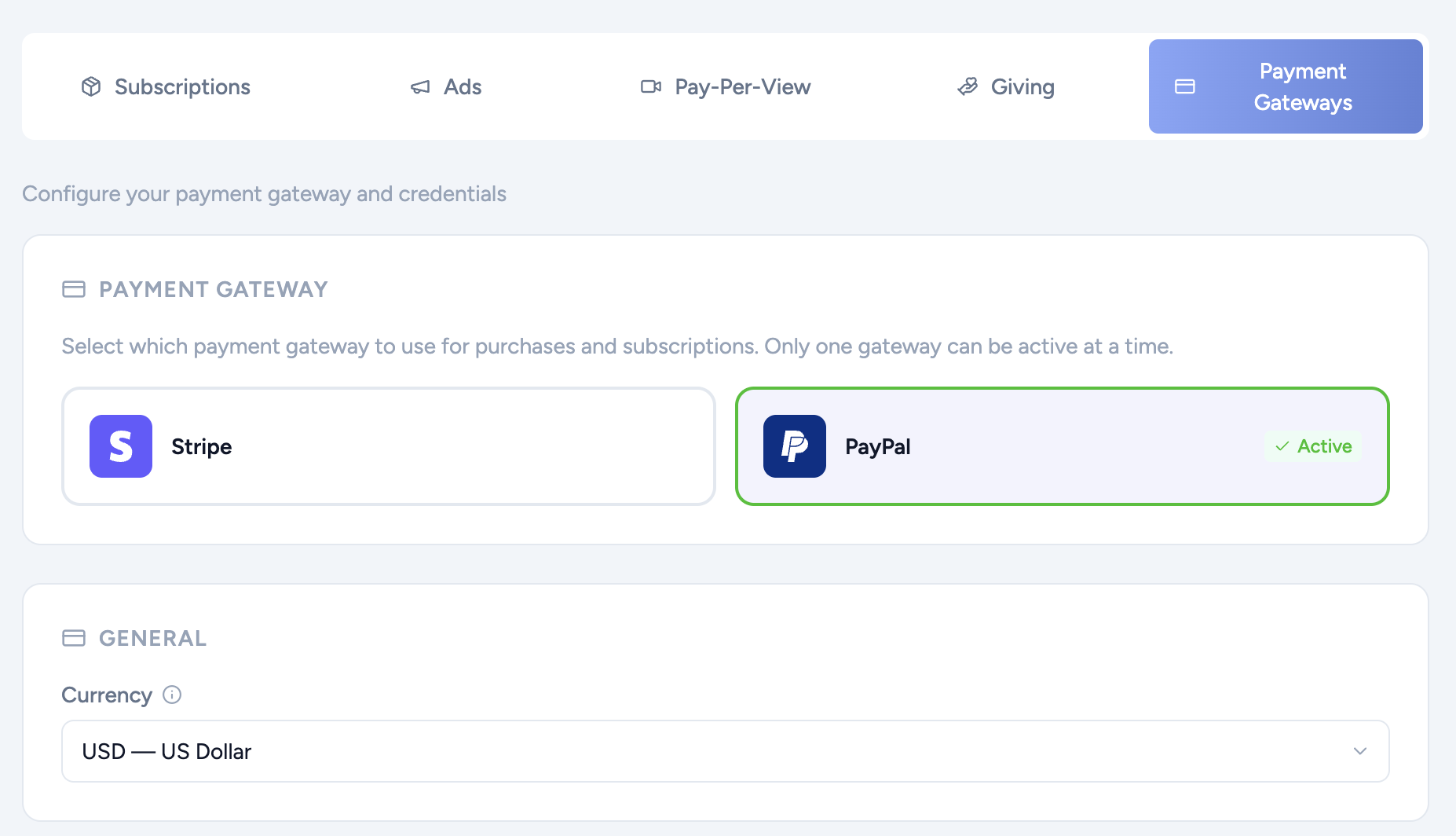
- Go to Monetization → Payment Gateways.
- Under Payment Gateway, choose PayPal. Only one gateway can be active at a time.
- Under General, choose your Currency.
Get your PayPal credentials
- Log in to the PayPal Developer Dashboard and go to Apps & Credentials.
- Make sure Live is selected, not Sandbox.
- Click Create App and give it a name.
- Copy the app's Client ID, then click Show under Secret and copy the Client Secret.
- In Bamboo, paste them into Client ID and Client Secret under PayPal Live Credentials.
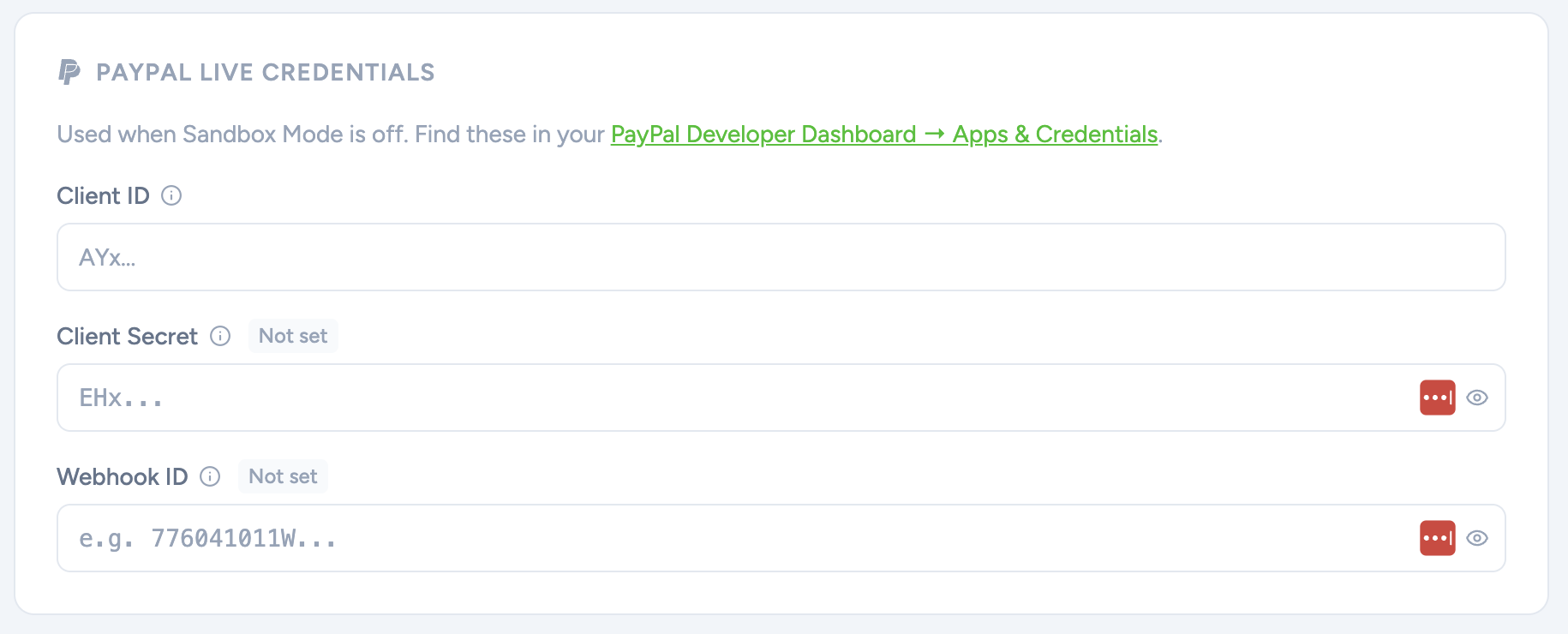
Tip: already saved a secret and need to change it? Click Replace next to the field in Bamboo.
Set up the PayPal webhook
The webhook tells Bamboo when a payment goes through or a subscription starts or ends, so your viewers get the right access right away.
- In the PayPal Developer Dashboard, open your app and click Add Webhook.
- In Webhook URL, enter your site's domain followed by /api/purchasecallbackpaypal, for example https://yoursite.com/api/purchasecallbackpaypal.
- Select the 6 events below, one by one.
- Save the webhook and copy its Webhook ID.
- In Bamboo, paste it into Webhook ID.
Events to select
- BILLING.SUBSCRIPTION.ACTIVATED: starts the subscription and gives the viewer access.
- BILLING.SUBSCRIPTION.CANCELLED: removes access.
- BILLING.SUBSCRIPTION.SUSPENDED: removes access.
- BILLING.SUBSCRIPTION.EXPIRED: removes access.
- BILLING.SUBSCRIPTION.PAYMENT.FAILED: records a failed subscription payment.
- PAYMENT.SALE.COMPLETED: activates the purchase.
Important: don't choose All events. Bamboo only handles the events above. If PayPal sends events Bamboo doesn't use, PayPal keeps retrying them.
Sandbox mode
Want to try purchases before you go live? Turn on Enable Sandbox Mode and add the Client ID and Client Secret of a PayPal Sandbox app under PayPal Sandbox Credentials. While Sandbox Mode is on, Bamboo uses your sandbox credentials. Turn it off to start taking real payments.
Learn more: Stripe integration · Monetization: Ads, Pay-Per-View & Giving