
Schedule a Live Event in Your TV Channel
Your live events can air inside a TV channel, between your regular programs. Viewers watching the channel see your live broadcast at its scheduled time, and the channel goes back to its regular schedule when the event ends.
It takes four steps: create the live event, add a fallback video, open a Scheduled channel, and place the live event on the channel's schedule in Playout.
In this article:
- Step 1: Create your live event: name, categories, and start and end times
- Step 2: Add a fallback video: what plays if your stream isn't live
- Step 3: Open a Scheduled channel: or create a new one
- Step 4: Add the live event in Playout: place it on the channel's schedule
Step 1: Create your live event
- Go to Content → Live and click Add Live Stream.
- Fill in the Name, Description, and Categories.
- Under Scheduling, set the Start Date & Time and End Date & Time. Use the same times you'll schedule on the channel.
- Click Create Stream.
Already have a live event? Open it in Content → Live and continue with Step 2. Learn more: Going Live: Live Streaming & Live Events
Step 2: Add a fallback video
The fallback video plays on the channel if your live stream isn't available during its scheduled time, for example if your broadcast starts late. This way, viewers never see an empty screen.
- In the live event, find the Stream section.
- Under Fallback Video, choose a video from your library.
- Click Save Changes.

Tip: use a short promo or a "We'll be live soon" video as your fallback.
Good to know: Scheduled channels have a Fallback Video setting too. If the stream isn't live, the channel plays, in this order:
- The live event's Fallback Video.
- If there isn't one, the channel's Fallback Video.
- If there isn't one either, the channel's filler playlist.
Step 3: Open a Scheduled channel
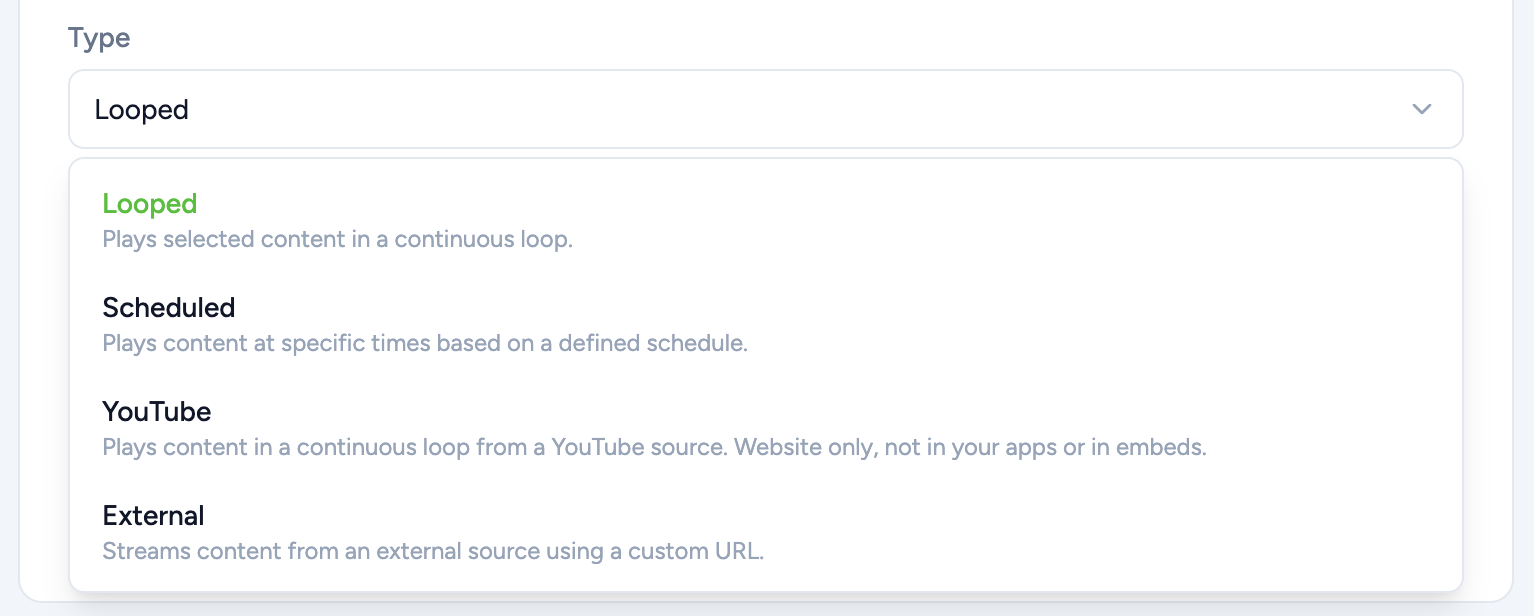
Live events can only air on Scheduled channels. Looped, YouTube, and External channels can't show them.
- Have a Scheduled channel? Go to Content → Channels and find it in the list.
- Need a new one? Go to Content → Channels, click Add Channel, and set the Type to Scheduled. Choose its Schedule Categories and a Filler Playlist (required for Scheduled channels), then click Create Channel.
Learn more: Setup Your TV Channel
Step 4: Add the live event in Playout
- In Content → Channels, click Set Schedule → under the channel's name. You can also go to Tools → Playout and pick the channel at the top right.
- Choose the day of your live event.
- In the library, open the Live tab.
- Drag the live event onto the schedule, at its start time.
- Set its run time, so it ends when your live event ends.
- Click Save.
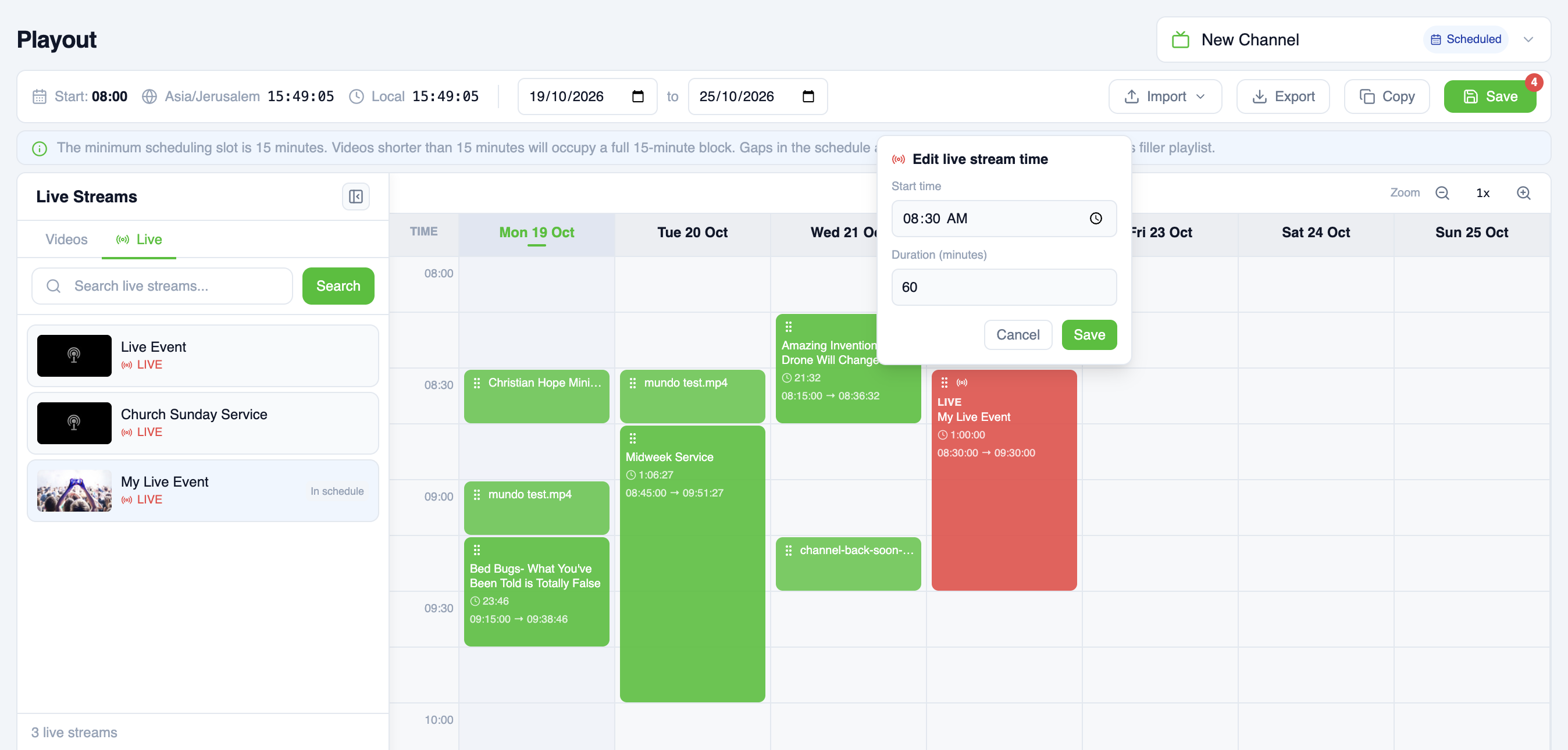
Your live event now airs on the channel at its scheduled time. Before and after it, the channel plays its regular schedule, and any gaps are filled with the channel's filler playlist.
Good to know: Playout works on desktop only, so use a computer with a large enough screen.
Learn more: Scheduling your TV channel · Going Live