.png)
Setup your Bamboo OTT site & Apps
Here are the first steps you’ll need to take to build your own video site.
- General settings
- Adjust your Colors and Branding
- Build your Navigation menu
- Add your custom Bamboo domain
- You're ready! Let's go live!
- Q&A
General settings
Before we start working on how your site looks and feels, let's define some general settings.
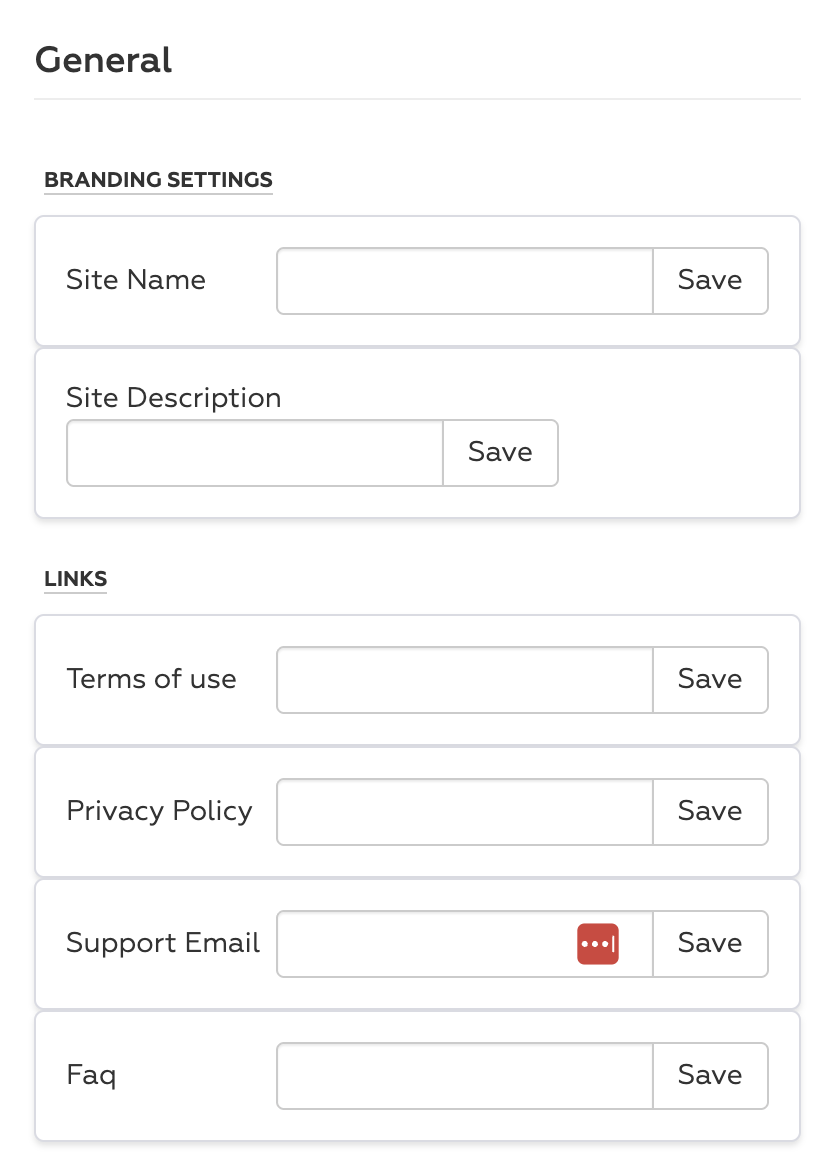
In OTT > Settings> General > Branding settings, you can update the Title and Description for your site and apps.
Bamboo Pro Tip: These are the values that will also be used when your site appears in Google search results.
Under links, you can also add URLs to legal pages for users who enroll on your site, such as the terms of use and privacy policy. If you don't have custom links for those pages, leave them empty, and we will use the Bamboo Default ones.
You can also add your support email, so end-users will know how to reach out.
Moving on to some general branding.
Adjust your Colors and Branding
To make sure your site and apps truly represent you, let's customize the colors and images.
The Branding tabs are where to do that.
Images
In Branding > Images, upload your favicon (the small icon that appears in the browser's top bar).
You can add your company's logo and upload images for your site and app backgrounds.
There are separate images for your mobile site and apps, and for Desktop and TV apps.
Additionally, you can upload images for the overall background of your site and apps, as well as different ones for login and registration pages.
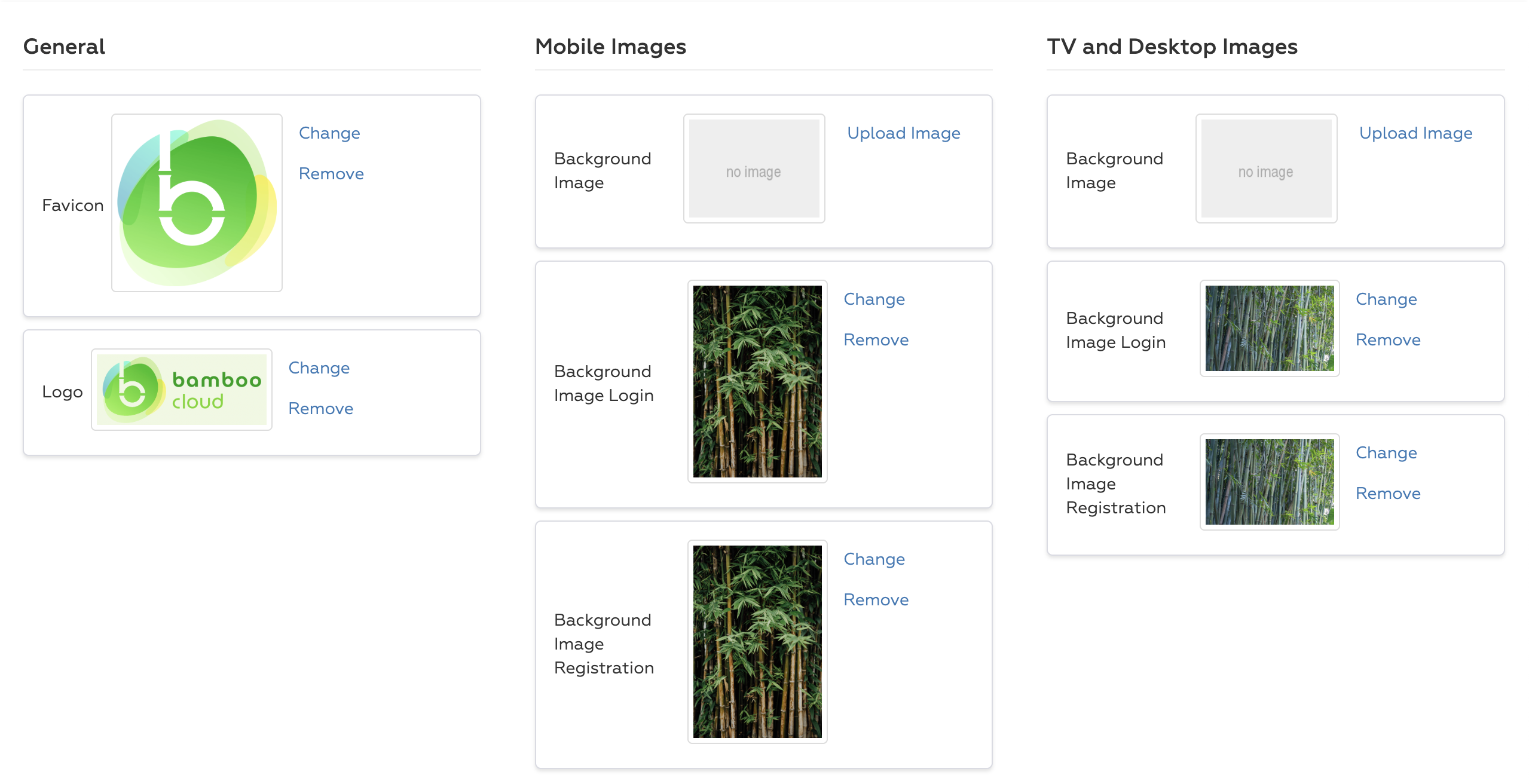
Bamboo Pro Tip: We recommend not using your Logo on the Login/Registration page; opt for a more welcoming, commercial image.
Colors
Colors can be adjusted on the Branding > Colors tab.
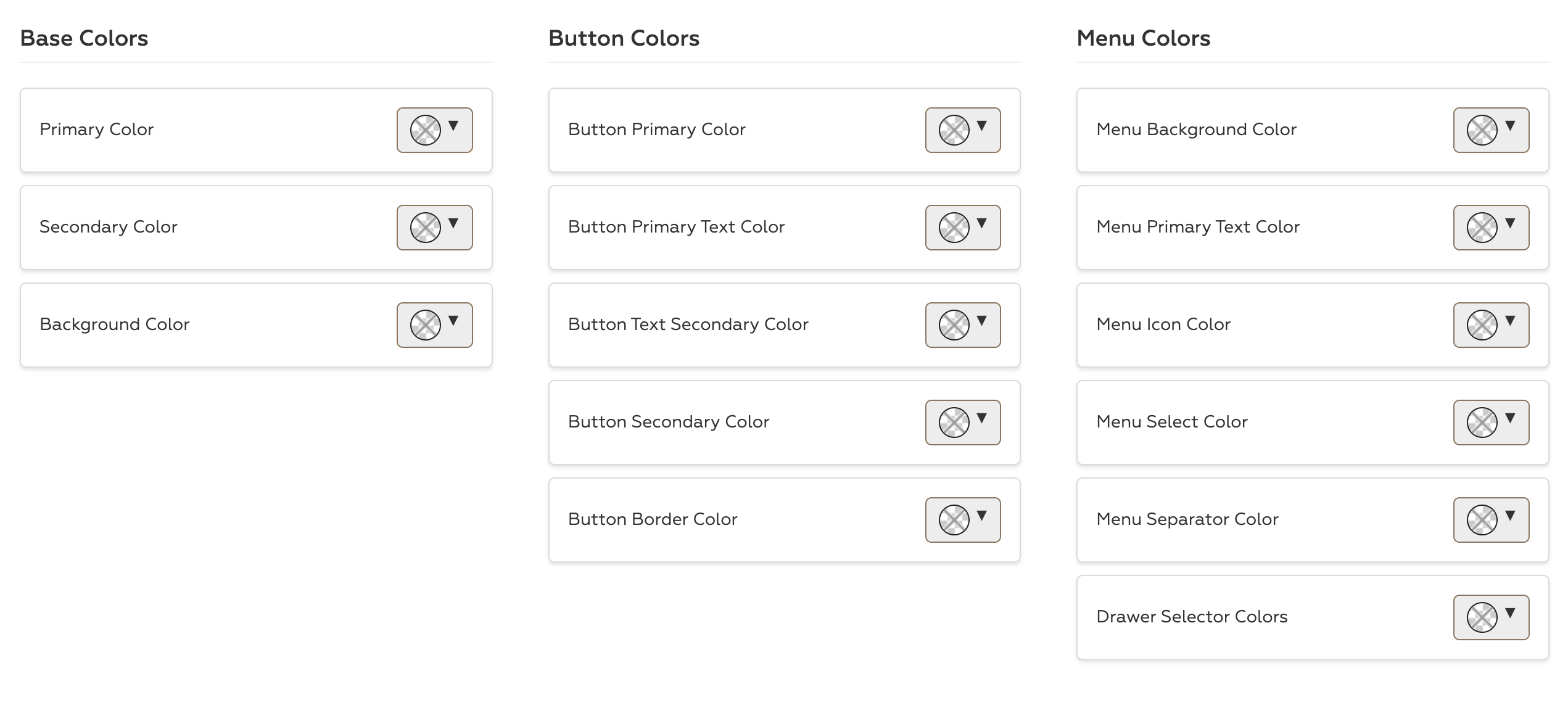
To see where each color is being used on your site, you can check them out here by adding /color-reference at the end of your Bamboo domain.
For example - https://demo.bamboo-cloud.com/color-reference
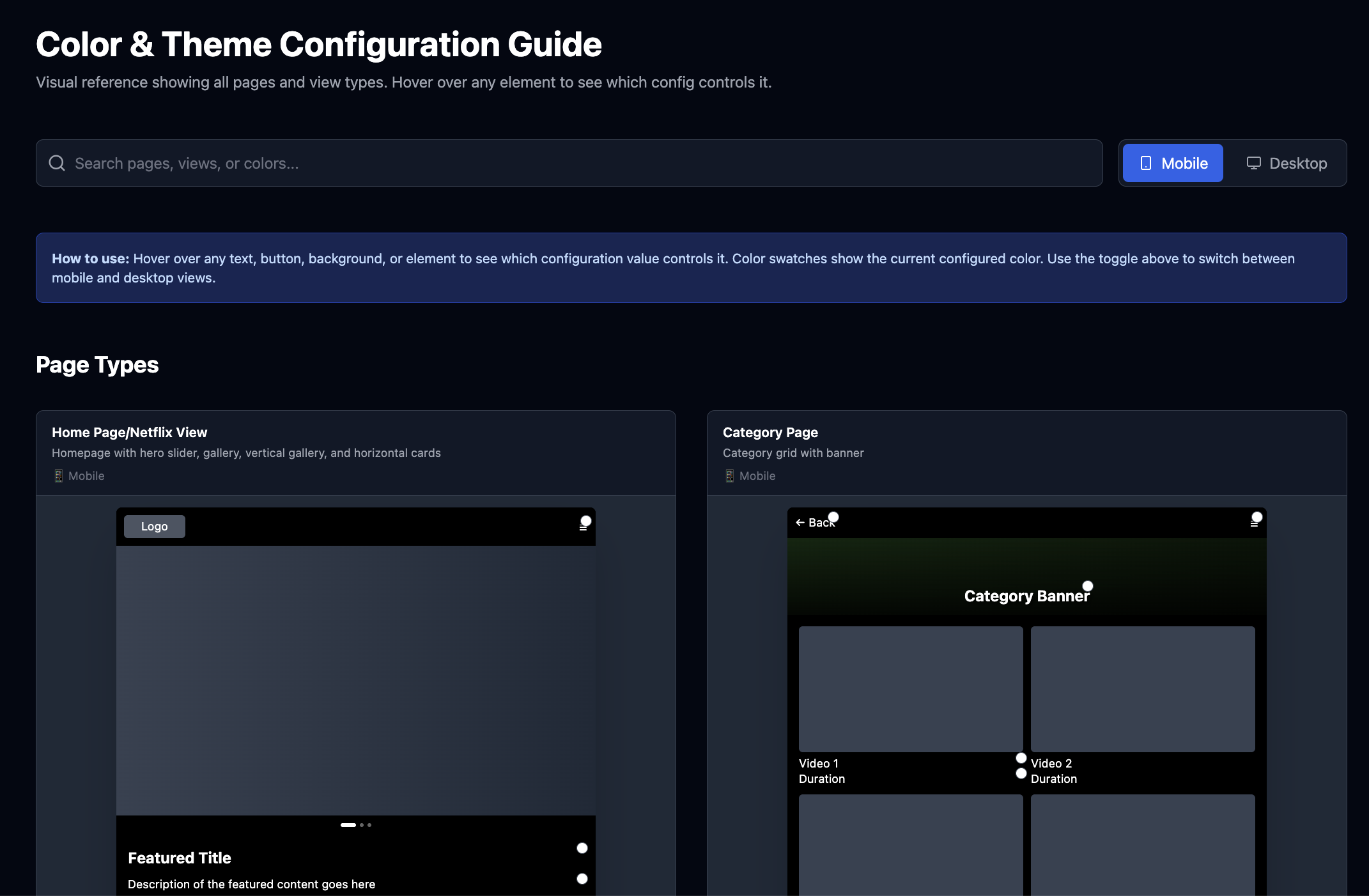
Not that you can't change the colors or layouts from this screen, those are just the guidelines.
Bamboo Pro Tip- On the color reference page, you can toggle between the mobile and desktop looks.
Important note- Not all looks and colors are identical across the Bamboo Apps, but most are similar.
Build your Navigation menu
Your Navigation defines the structure of your Bamboo Site and Apps.
Each item becomes a page, and the first item becomes your homepage.
To build your menu:
- Go to OTT → Navigation
-
Click Add Item
Enter a Display Name (users will see this in the menu)
Choose a category or leave it on All Categories
- Use a category for content pages
- Use “All Categories” for Channels, EPG, Webviews, User pages, or for a Netflix page that uses your full library
- Select a View Type (Netflix, Gallery, 2 Columns, Channels, EPG, Webviews, etc.)
- Add a Link if required (for Webviews)
- Add icons if you want app-specific icons
- Drag to reorder
- Save your changes
Your site and apps update automatically.
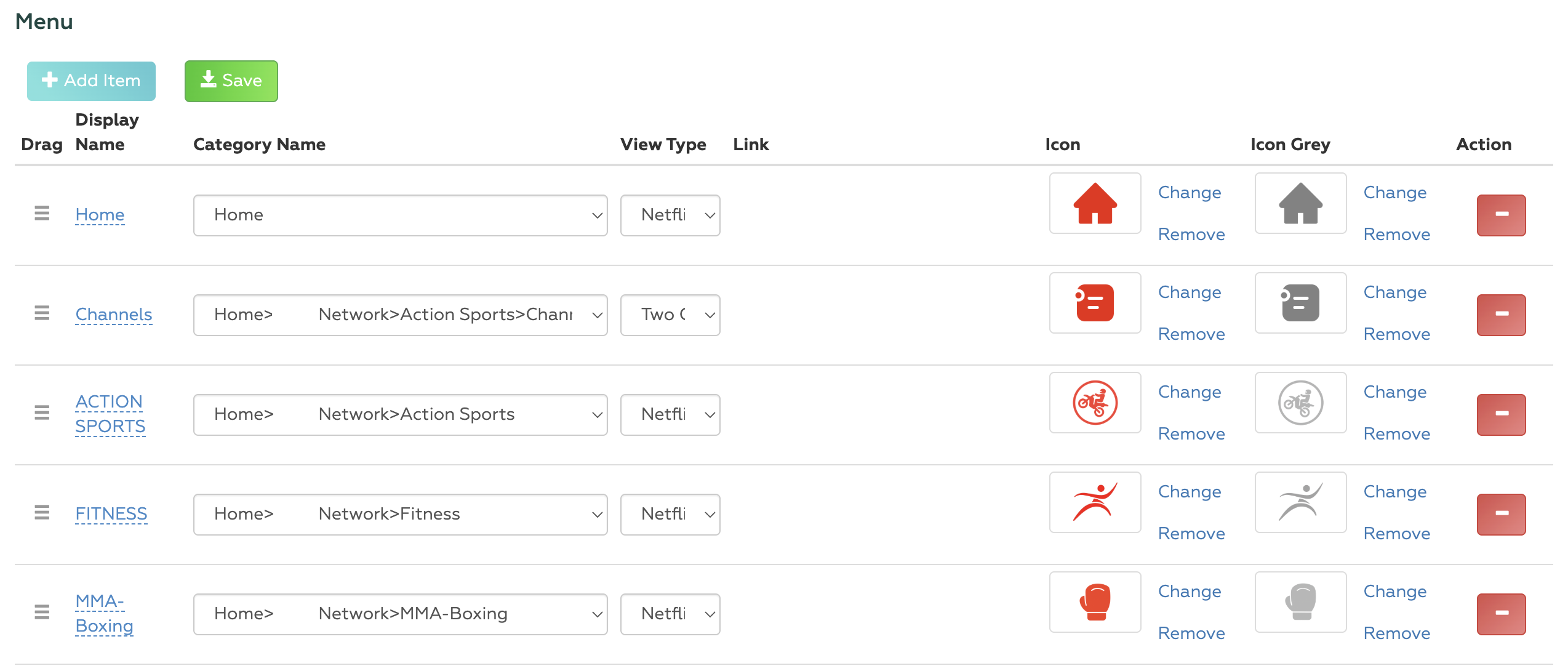
To see how each view type looks on your site and apps, you can check it out here by adding /color-reference at the end of your Bamboo domain.
For example - https://demo.bamboo-cloud.com/color-reference
Need more detail?
The Full Navigation Tutorial covers every setting, view type, and advanced option step-by-step.
Add your custom Bamboo domain
To make your site a bit more yours, start with a custom Bamboo Domain.
You can add it in Account> Domain settings.
You can choose a URL that has your company name.
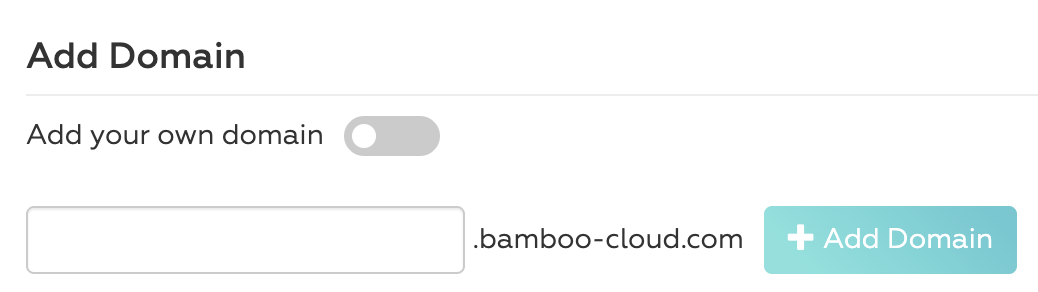
We also support fully custom domains that are not under the Bamboo Cloud URL.
Reach out to our support to add a custom domain.
You're ready! Let's go live!
Now that everything is done and ready to go live with your Bamboo OTT site.
The only thing left is to make your site public by "Enabling OTT site page"
Go to OTT>Settings>Functionality section
And press the button to enable the site pages.
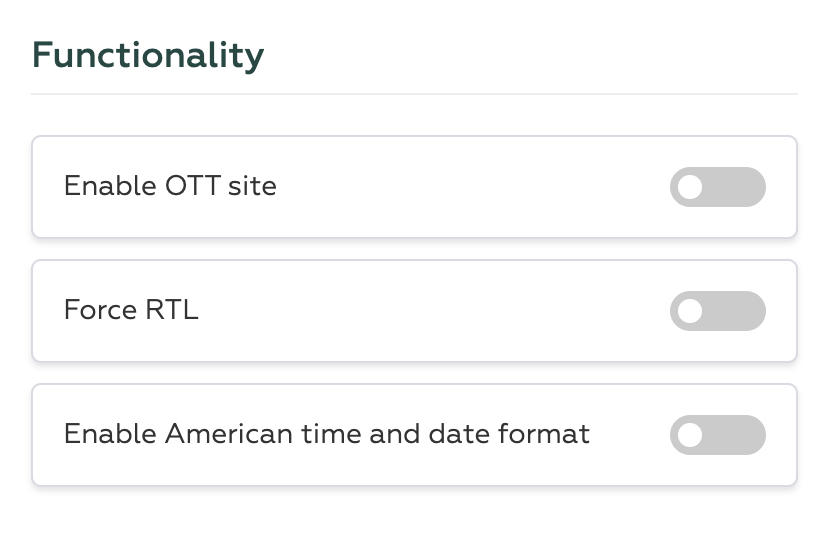
Let’s get your brand out there!
** Bamboo Apps require a longer process, sharing developer accounts, some images, and configurations. But now everything should be ready for your build!
Contact us to launch your apps.
Q&A
Do I need to do anything right now?
Yes.
Site-only clients must rebuild navigation under OTT → Navigation.
All clients should review and update their color settings under Branding → Colors.
Why did “Website” and “Apps” disappear from the menu?
They were merged into OTT, which now controls both site and app appearance and navigation.
What changed in the homepage logic? (Important for site-only users)
The homepage is no longer a separate page.
The first item in your navigation menu is your homepage.
You select either a category (usually a parent category) or “All Categories”, and whatever lives under that category tree will appear on the homepage automatically.
How do I show a hero slider at the top of my homepage?
The first category displayed on your homepage must use a slider view type.
This is set inside that category’s edit menu.
If it’s not a slider, the homepage will not show a hero unit.
Why do I need to rebuild my navigation?
The new system uses a unified structure that is incompatible with the old site menus.
How long does navigation setup take?
Most clients finish in 5–10 minutes.
Select categories from your tree and choose their view type.
If you’re unsure, the Netflix layout is recommended.
Will my apps be affected by these changes?
No.
Your existing app navigation and colors will automatically apply to the new site.
But if you change anything, those same changes will also apply to your apps.
What happens if I don’t set brand colors?
Your site will use the default styling.
Where can I preview my color options?
Visit yourdomain.com/color-reference.
Did any of my content or data change?
No. Everything remains the same.
Can I go back to the old site?
No.
The new Bamboo Site fully replaces the previous system.